
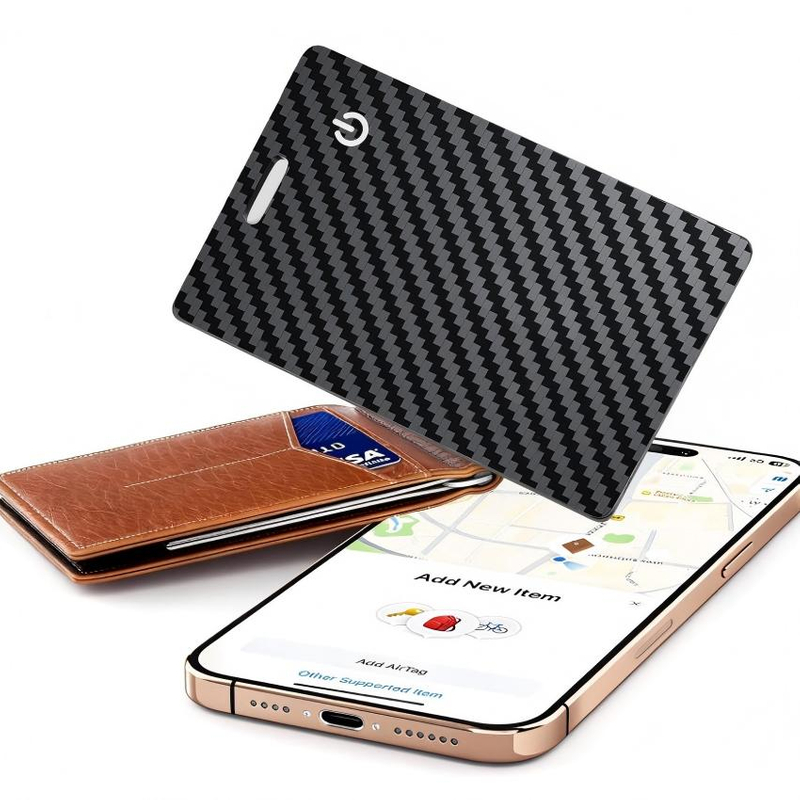
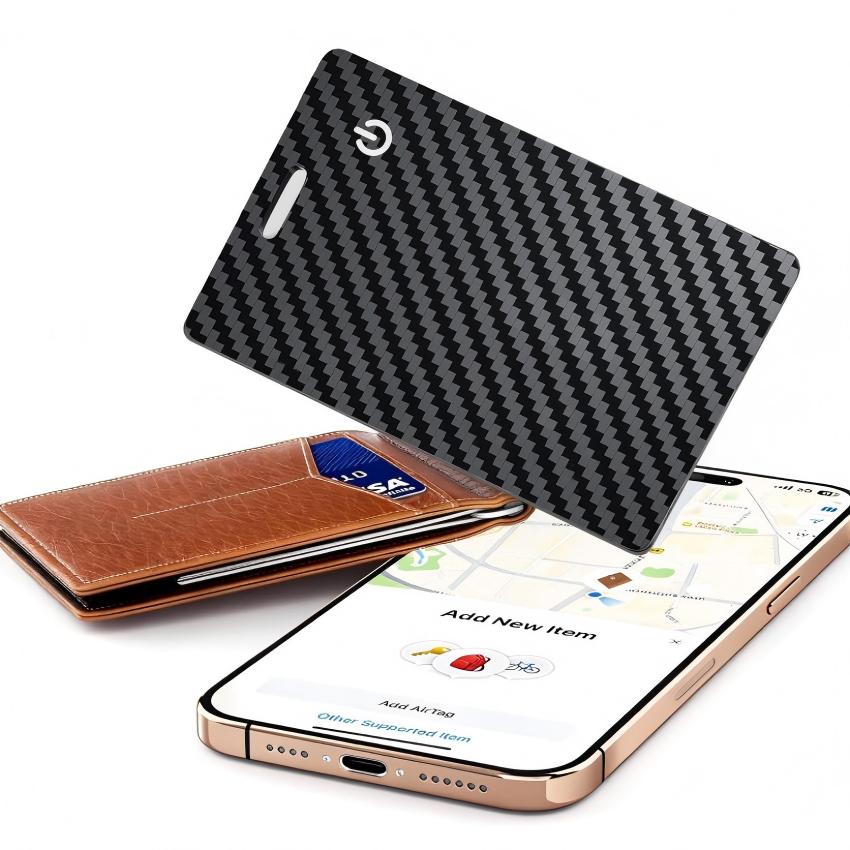
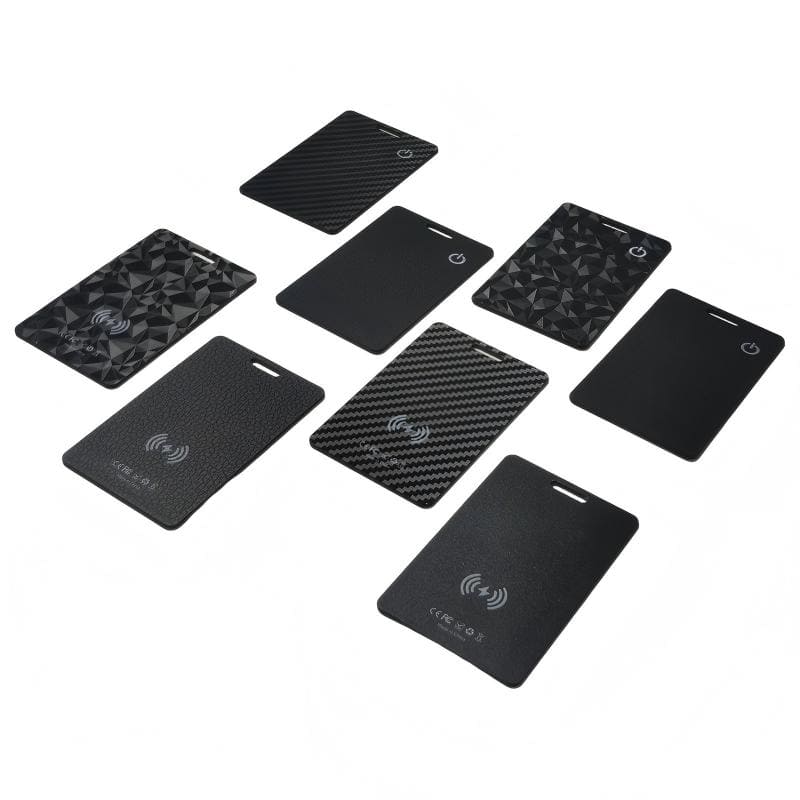
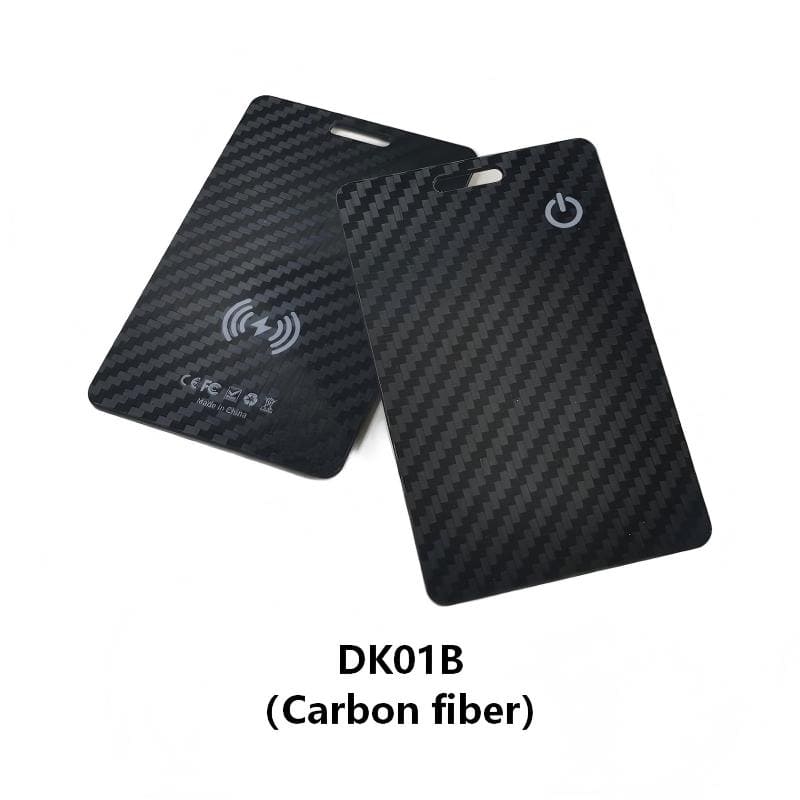
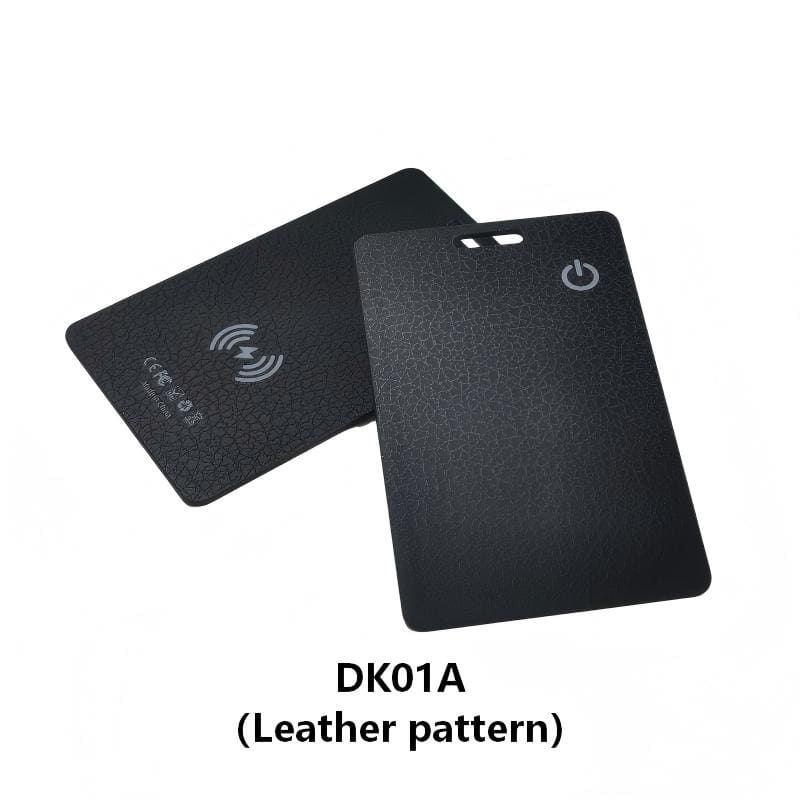
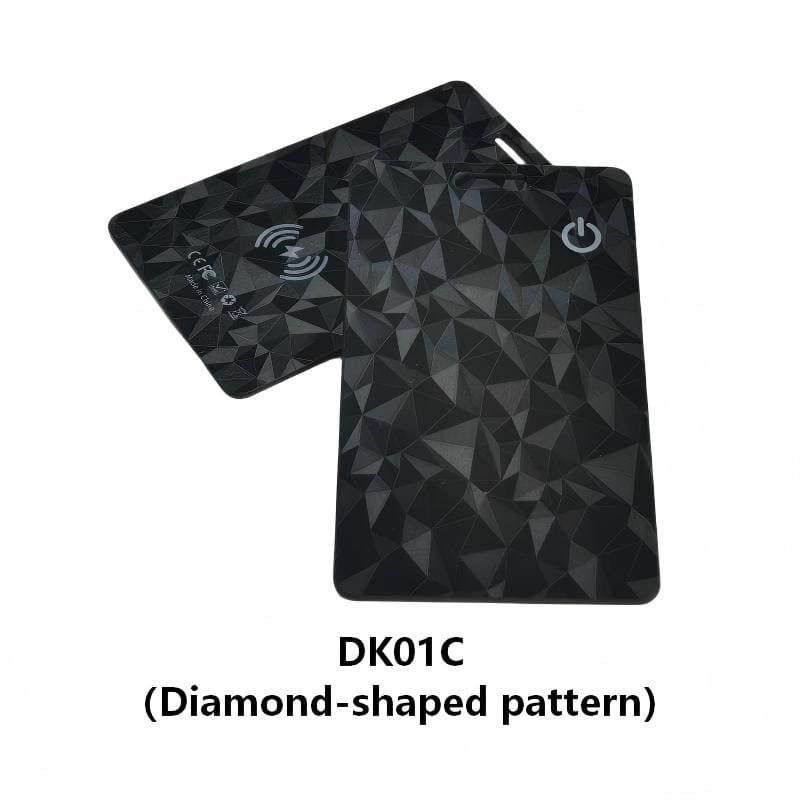
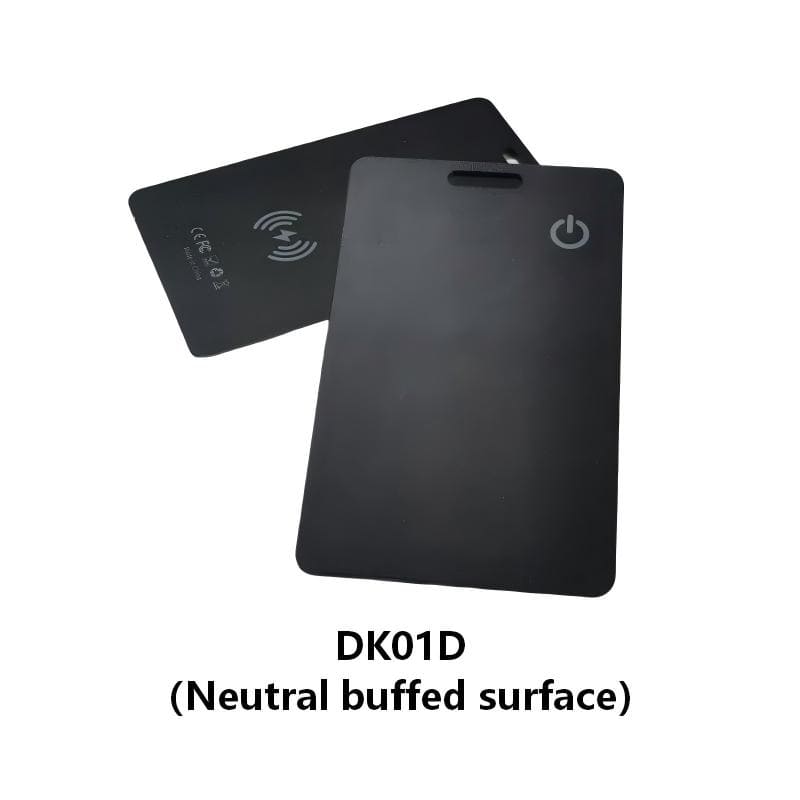
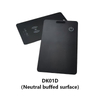


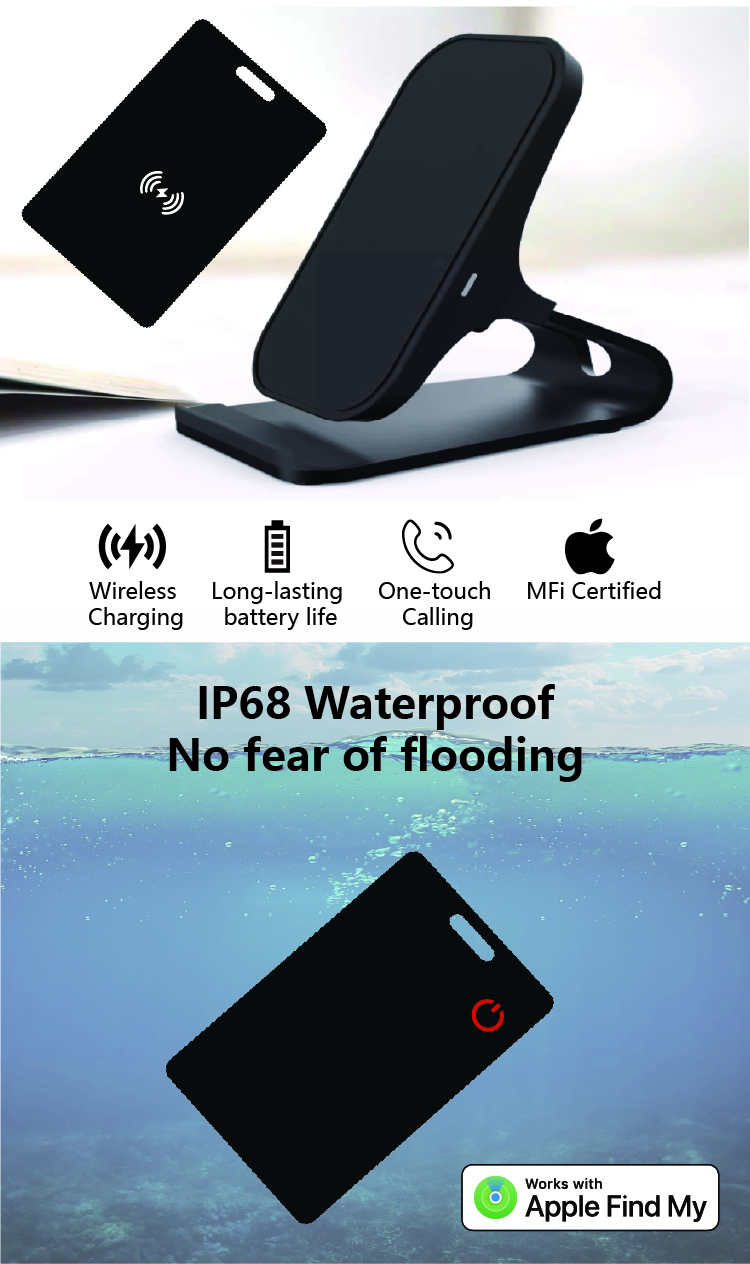
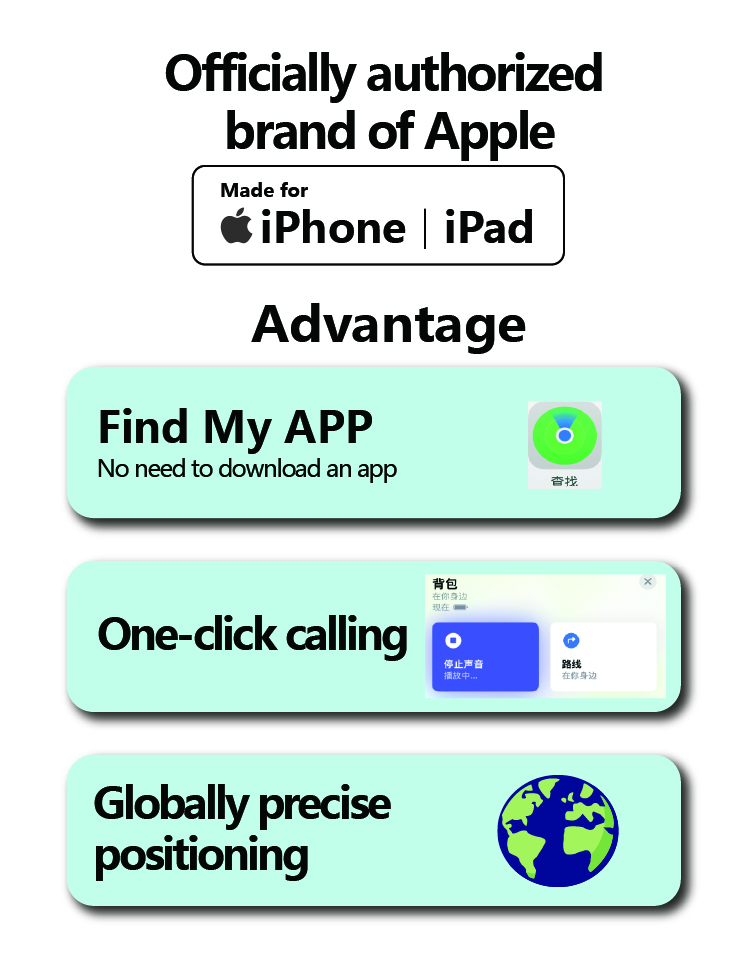
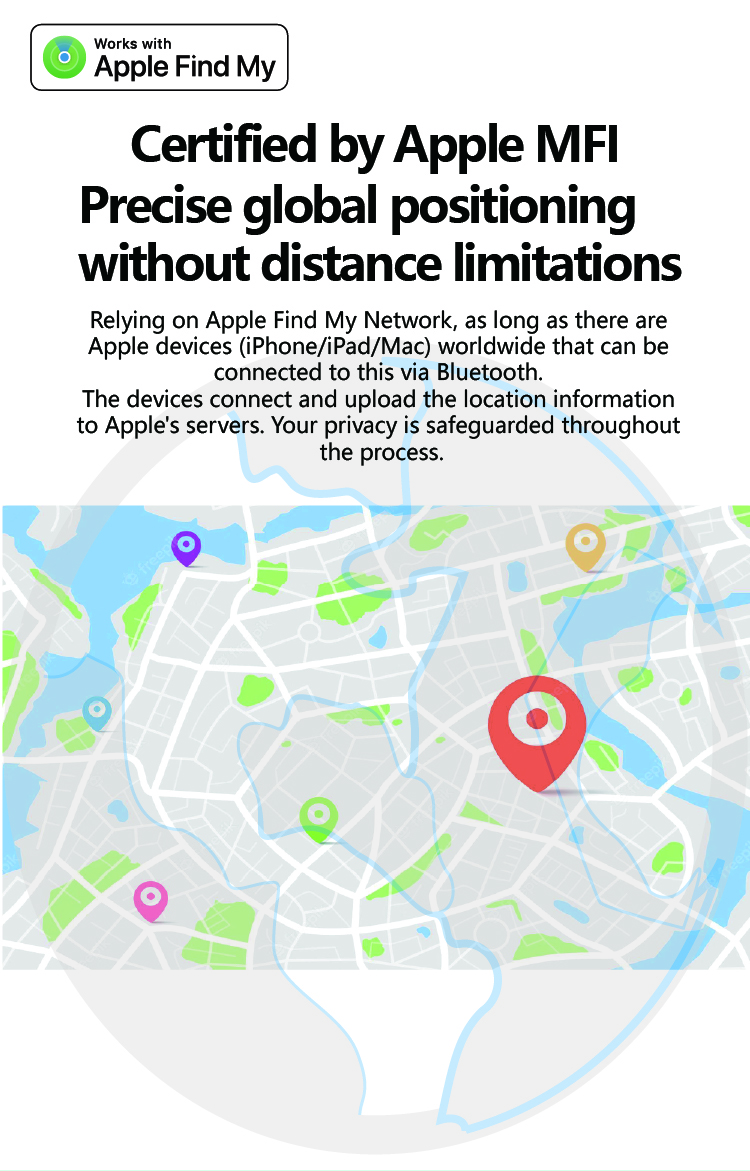
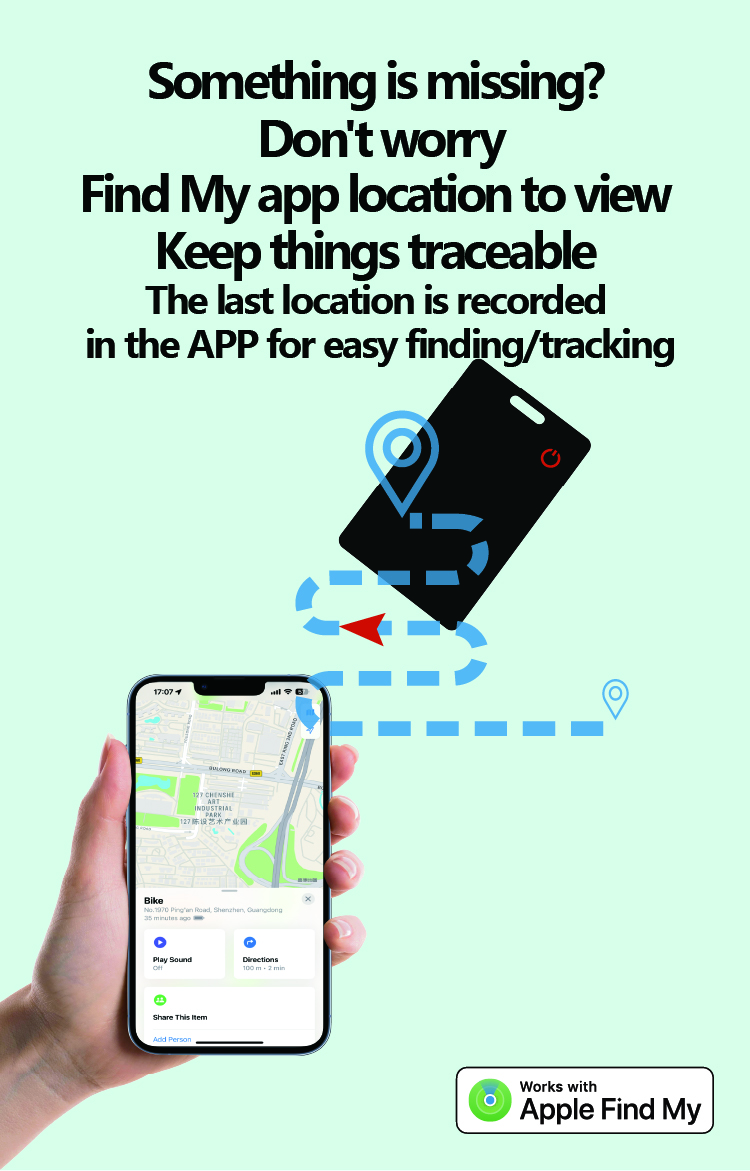
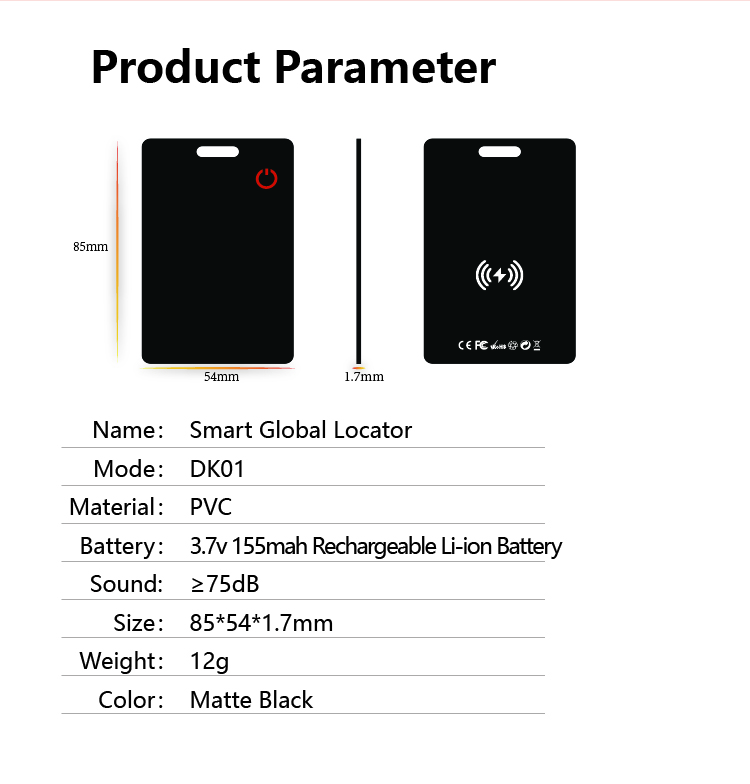
【Precise Positioning, Ultra-Thin Smart Card】Lost your wallet? Track and locate your wallet tracking card directly on the map via Apple's "Find My" app. The wallet tracker card is only 1.7mm thick. The ultra-thin design is perfect for tracking your wallet, bag, laptop, ID card, jacket, camera bag, passport, and other items. If using an RFID-blocking wallet, keep the wallet tracking card in the outer pocket of the wallet to avoid its blocking effect from making the item unusable. (iOS 14.5 or later only. No Android support.)
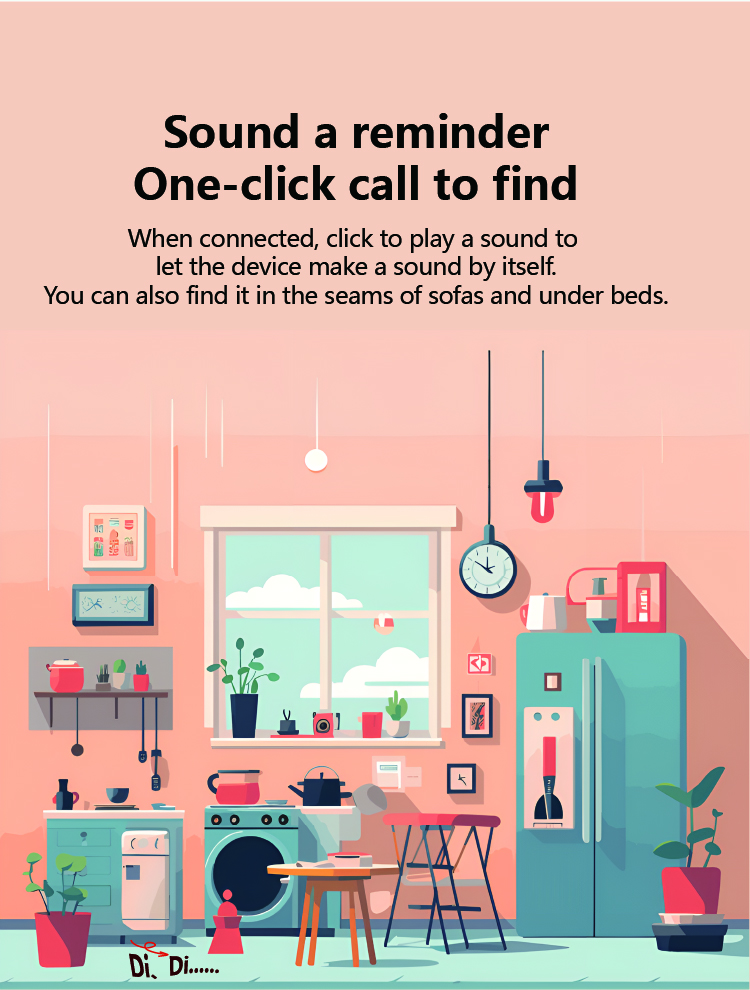
【Super Powerful Alarm】Can't find your wallet? Use Apple's "Find My" app to make your tracking device emit an audible alarm of up to 80dB. You'll hear beeps under the sofa, bed, or cushions. Now you can easily and quickly find your lost items without rummaging around.
【Wireless Charging, Super Long Battery Life】Enjoy up to 4 months of powerful GPS tracker use on a single charge, and any standard Qi wireless charger can easily power your wallet tracker. It's durable and environmentally friendly. (Note: Wireless charger not included.)
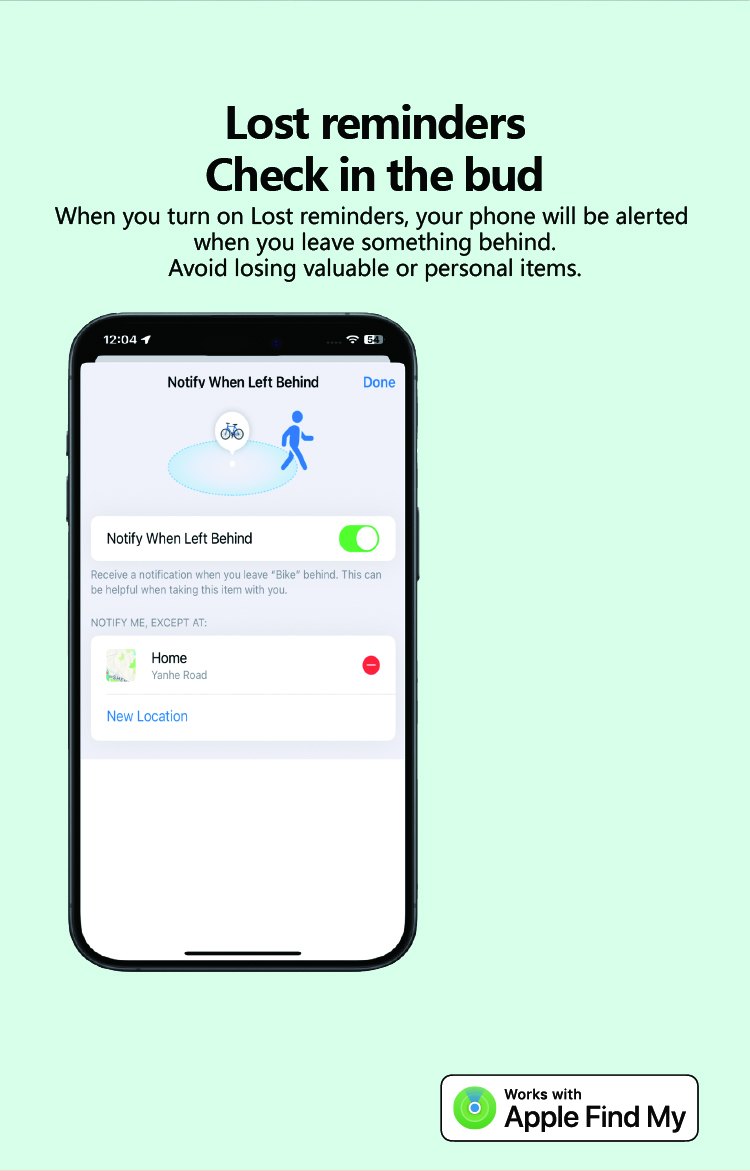
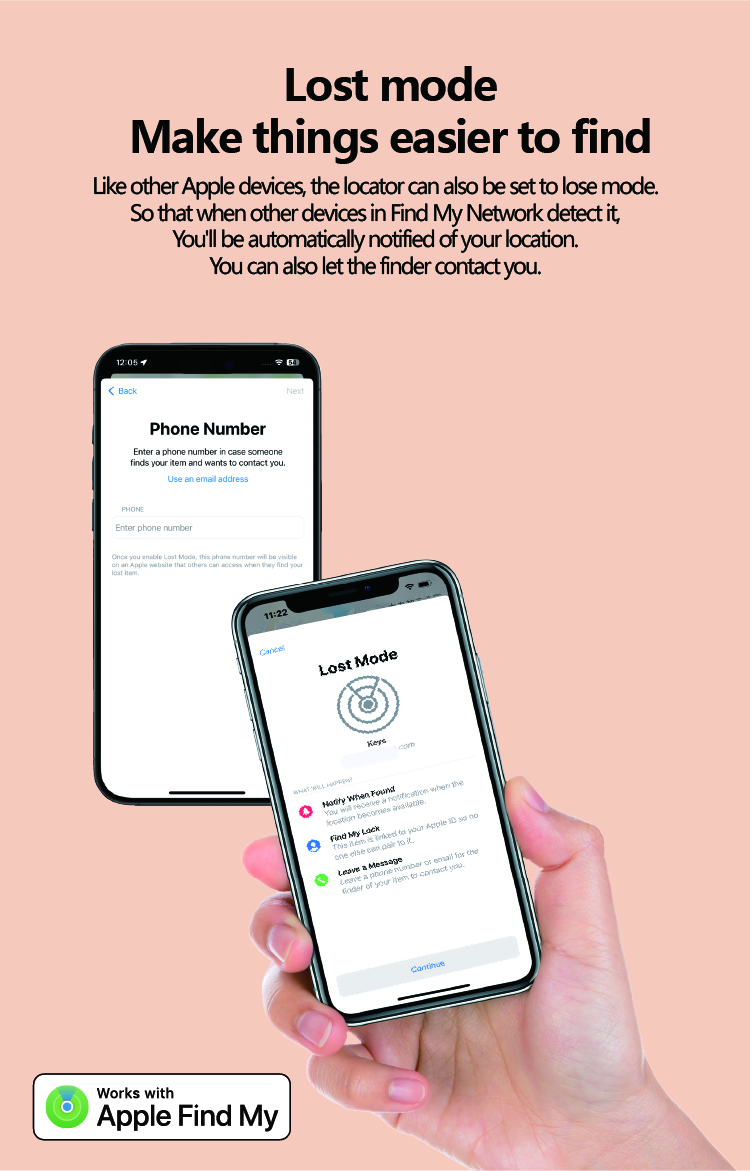
【Timely Lost Item Reminder】If you misplace your smart card, the "Find My" app will immediately send a notification with the last known location to your iPhone—no subscription fees required. This helps you retrieve forgotten items.
【IP68 Waterproof and Dustproof】The smart card is rated IP68, capable of withstanding everyday challenges, including splashes, spills, and even full immersion in water. Whether your wallet is lost on the roadside, in a puddle, or in a sewer, this wallet finder works reliably.
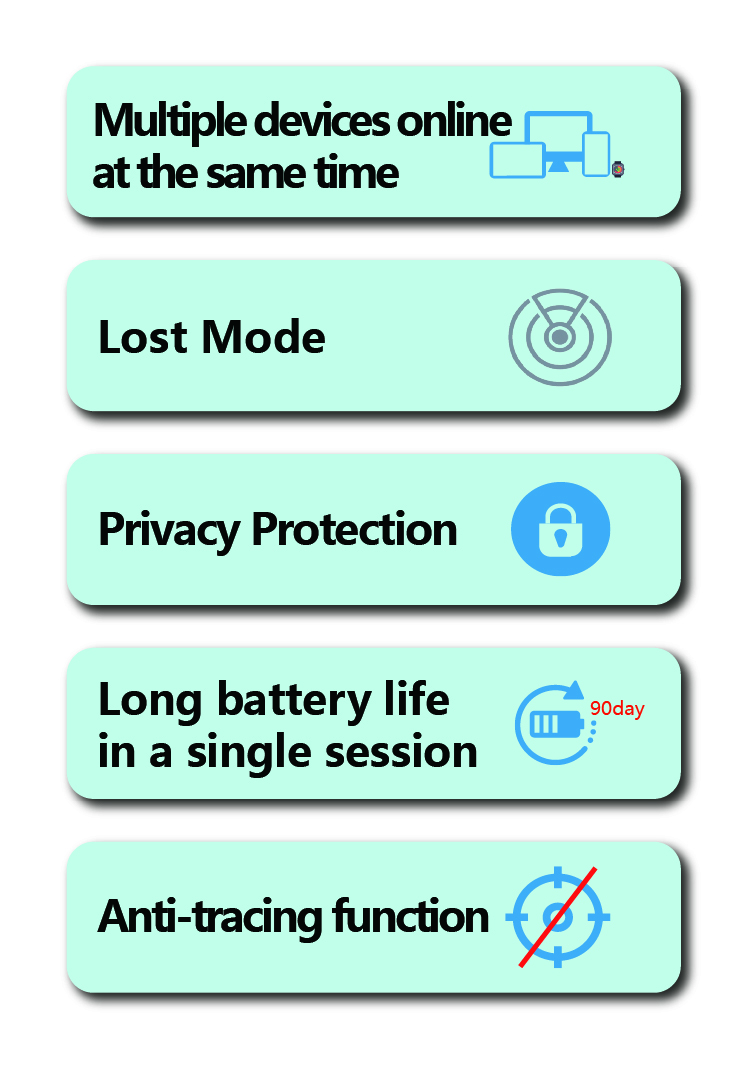
【Privacy Protection】Your data always belongs to you. The wallet tracker card never stores or shares your location history. All information is completely anonymous and end-to-end encrypted to ensure your privacy.
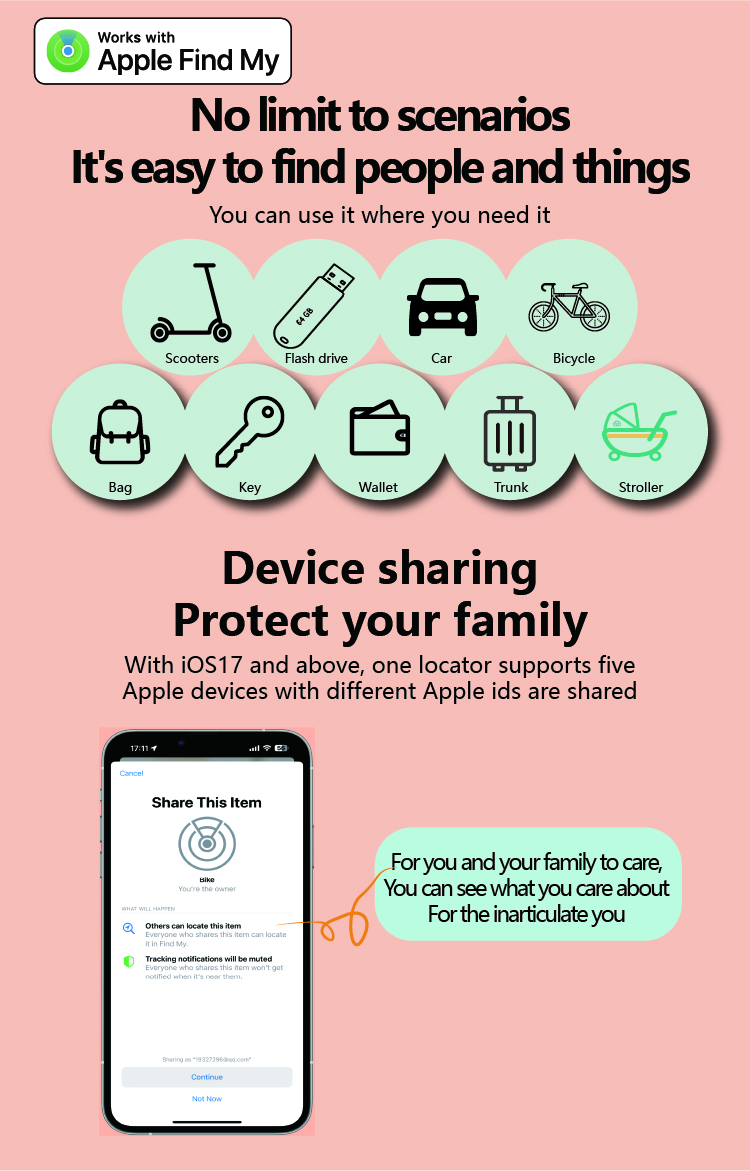
【Multi-person Sharing】New in iOS 17, you can share your wallet card with up to 5 iPhone devices, allowing them to view its location on a map. A single iPhone can connect to up to 32 smart tags. No more worrying about family and friends having trouble finding items.(Ensure your iOS device is updated to iOS 17.)
Answer: 10 pieces.
Answer: DHL air freight arrives within 5 days (shipping fee borne by the buyer); general transportation takes 15–20 days.
A: Usage time varies by user. For example, playing beeps consumes more power; frequent sound playback will drain the battery faster.
B: The product uses an ultra-low-power chip and a 150mAh rechargeable lithium battery. Under normal standby (without playing sound), the battery life can reach 5–6 months.
① Place the side printed with the wireless charging logo face down on the wireless charging base (transmitter);
② When charging starts, the red charging indicator stays on;
③ When fully charged, the red indicator turns off and the blue indicator stays on;
④ Remove the device promptly after full charge.
This is usually a compatibility issue. Wireless chargers (transmitters) on the market support various protocols and models, so full compatibility cannot be guaranteed. Please understand this is common to all wireless charging receivers.
The coil inductance of this device is about 12–13uH, compatible with mainstream protocols, and has passed compatibility testing before mass production.
① If wireless charging fails, try using a different mainstream wireless charger to power the device in time to avoid affecting use. If possible, purchase a mainstream-protocol charging dock.
② A matching wireless charging dock is available as a bundle.
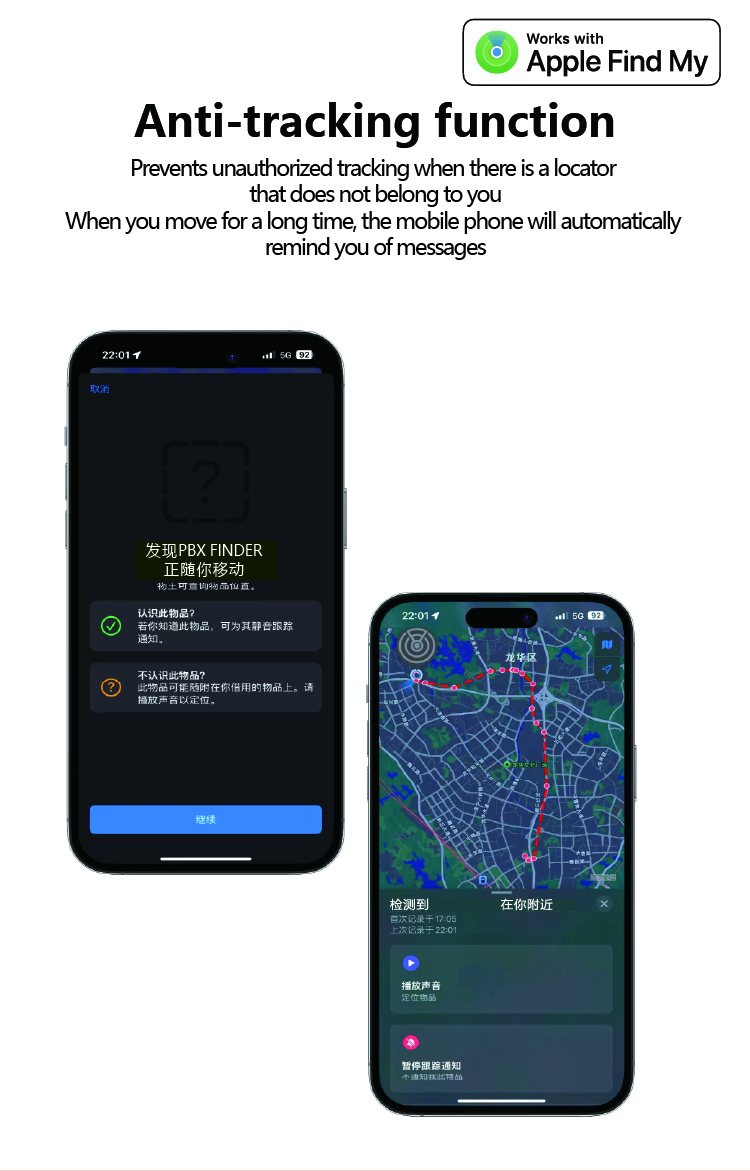
After the device disconnects from the bound iPhone for a period, if there is any Apple device within a 100m diameter around the device, it can provide location information for the device, and the phone will obtain the current location. (Broadcasting at 2.4GHz band)
Location update frequency depends on several factors:
A: Number of nearby Apple devices;
B: Network delay of Apple’s servers;
C: Find My products do not support real-time updates; they only record the last updated location. This is very different from GPS positioning as many users expect, which may cause a feeling of inaccuracy;
D: Nearby Apple devices must have Bluetooth turned on and working properly.
A: First check if the battery has power. Try pressing the power button to see if there is a beep;
B: When the device is near the phone, tap “Play Sound” in the Find My app. If no sound plays, forcibly unbind the device, perform a reset, then reconnect and bind.
A: According to Apple’s beep standards, trackers are normally set to 60–70dB, which meets the standard;
B: To ensure battery life, current to the buzzer is intentionally limited by a current-limiting resistor to meet the dB standard. Personal hearing perception may vary.
A: During pairing of Find My devices, large data is exchanged between the device and phone. The connection is usually established, but Apple’s network may be unstable or slow, causing the screen to freeze.
B: In this case, close the Find My app, move to an area with better network, and reconnect. If that fails, restart the phone and try again; this usually resolves the issue.
C: Note: It takes time for Apple’s servers to clear binding records. If you only have one iPhone, reset the device, wait for a while, then try pairing again.
D: Reset the device per the user manual and try with a different iPhone; it usually connects.
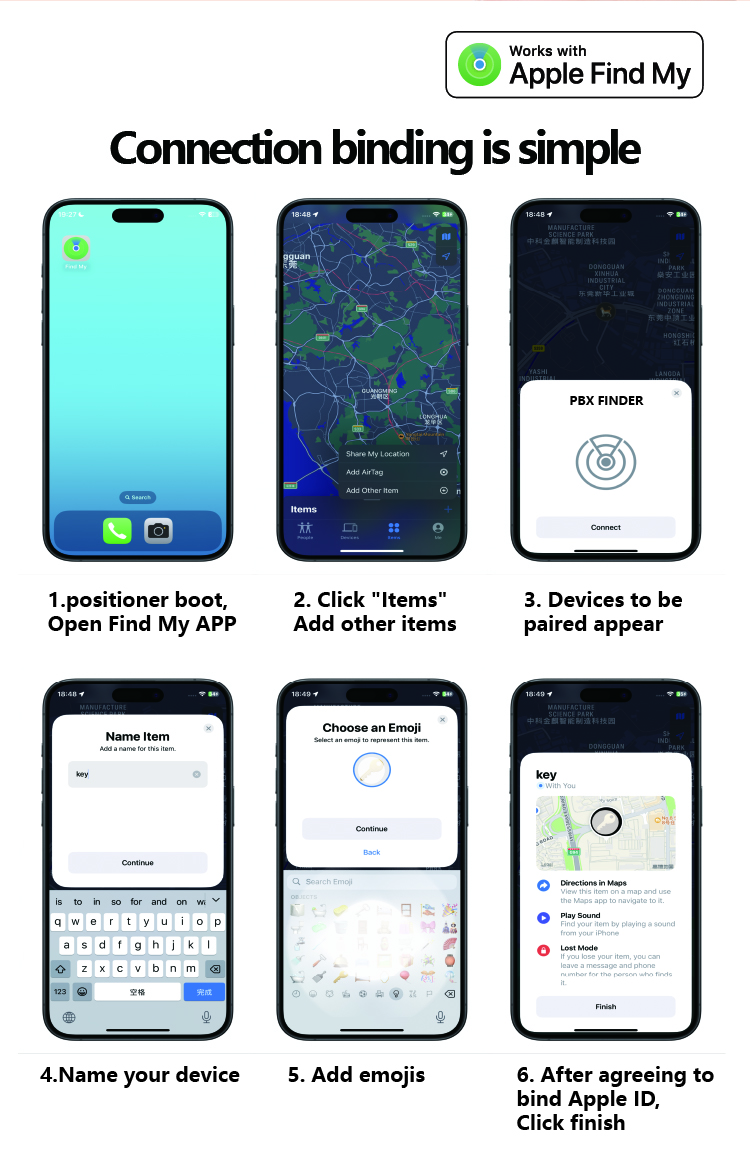
A: Binding and activation: After connecting a Find My accessory via Bluetooth with the Find My app, they negotiate a key pair. The Find My app stores the private key and public key; the accessory stores the public key.
B: As a BLE beacon, the accessory continuously broadcasts a changing key (derived from the public key; broadcast cycle is adjustable). BLE uses frequency hopping across 3 physical channels: 37, 38, 39. One broadcast starts on channel 37, goes through 38, and ends on 39 (continuous frequency hopping on three channels).
C: Nearby Apple devices (iPad, iPhone, etc., can be other people’s devices) detect this broadcast, package the key with their own location data, and upload to Apple’s server. Phones are essentially used as base stations for the Find My network.
D: The Find My app retrieves these location reports from the server and parses the location data.
If the previously bound phone did not properly unbind or remotely forced-delete the tracker, factory reset alone will not work. The device will be unusable.
Reasons:
① Each tracker has a unique SN number. When first bound to a phone, the SN is linked to that Apple ID and uploaded to Apple’s server. If the original phone does not properly unbind or forced-deletes the tracker, Apple’s server still keeps the original binding, which cannot be removed by factory reset alone.
② This is a product feature. Please inform customers in advance: devices that are not properly unbound or are force-deleted cannot be returned or replaced.
③ The only solution: Ask the original user to open the Find My app, find the tracker, remotely force-delete it, then you can factory-reset and reuse it.
① Open the Find My app and bind the tracker normally;
② Select the device you want to share, tap “Add Contact” under “Share This Item”, tap “Continue”, enter the Apple ID of the person you want to share with, then tap “Share”;
③ The recipient will get a notification. Open Find My and tap “Add”;
④ View shared location: Once both you and the other party accept the request, you can see each other’s approximate location in Find My;
⑤ Stop sharing: When no longer needed, select the contact in Find My and tap “Stop Sharing Location”.
Note:
① Ensure both you and the recipient agree to location sharing;
② Location accuracy may be affected by device capability, network conditions, etc. Location data may be delayed or inaccurate in some cases;
③ Protect your privacy: Only share with trusted people;
④ Stop sharing in the app when not needed.
A: What is Left Behind Alert?
Left Behind Alert is a useful feature in Find My that helps prevent losing items. When the device is away from the bound phone for a certain time and distance, Find My automatically triggers an alert and sends a notification to remind you that you may have left the device behind.
If you don’t notice in time, the app sends a notification with the last known location to help you retrieve it.
B: How to use:
After binding, tap the device name, scroll down to Notifications, and turn on “Notify When Left Behind”.
Note: To avoid frequent disturbances, you can set a Safe Place and adjust its range.
A: Wait a few minutes and try again as prompted;
B: Try pairing with a different Apple device;
C: Update the Apple device to the latest iOS version and try again;
D: If none works: Turn off cellular and Wi‑Fi, restart the Apple device, turn on Bluetooth, factory-reset the tracker, then try again.
This issue is caused by low battery. Please replace the battery (CR2032 3.0V coin cell).
Occasionally, the interface shows one bar of power right after successful connection:
A. Due to software compatibility delay, the actual battery level will auto-refresh normally in 5–10 seconds;
B. Depending on the iPhone model’s hardware performance, there may be a refresh delay. Tap “Play Sound” or exit and re-enter the interface to check the actual battery level.